

Practice Circles · Practice Circles · Learners
Your Practice certificate
Updated 20 Nov 2026
This guide helps learners open, personalise, print and share their certificate.
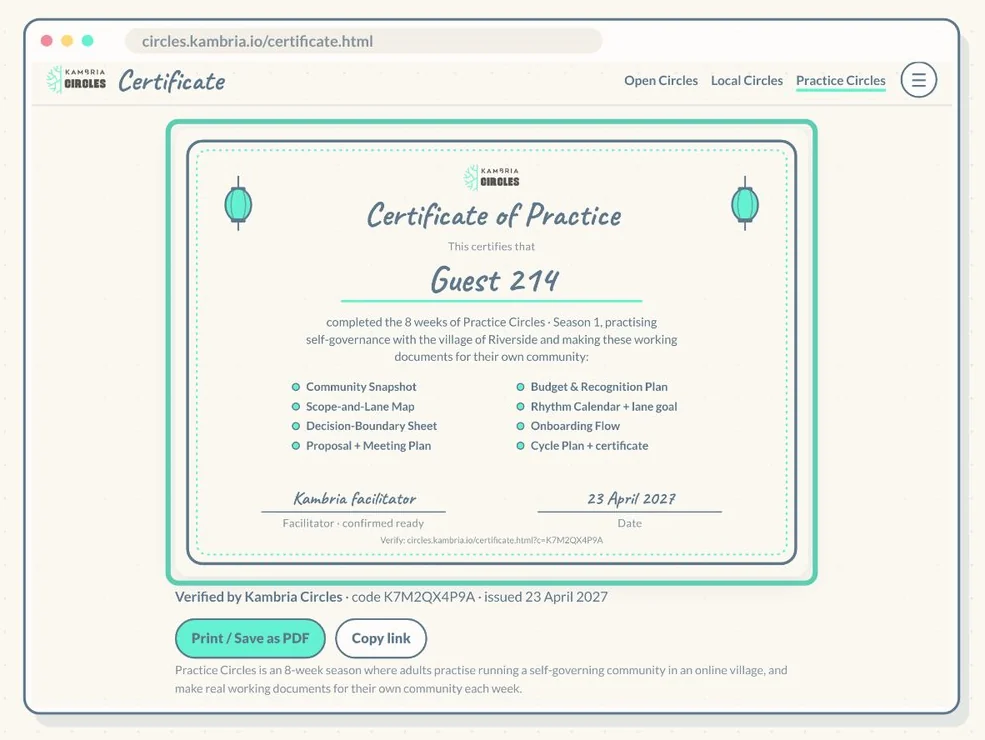
Before you start
- In week 7 your facilitator confirms you are ready and issues the certificate. Your week 7 Cycle Plan must be marked done in My artifacts.
Steps
- On your village page or the season page, find Your certificate is ready 🎉 and tap Open your certificate.
- Check the certificate: your name, season, village, the 8 documents you made, your facilitator, the date and the code.
- Under Your certificate, type the Name to print (optional). Leave it empty to print your guest number.
- Tick Hide my certificate if you don't want others to see it.
- Tick I’d like to facilitate a later season if you want to lead a village next time.
- Tap Save. The certificate shows the new name.
- Tap Print / Save as PDF to print it or save it as a PDF (A4, landscape).
- Tap Copy link to share it.
Good to know
- Anyone with the link can see the certificate, with "Verified by Kambria Circles", the code and the date. It is not listed anywhere.
- The printed name shows only on your certificate, never in the village.
- A hidden certificate shows "not available" to others. Only you can see it, with "Hidden: only you can see this certificate right now."
- If you tick "I’d like to facilitate", the Circles team reaches out on your village's Discord. No new contact details are collected.
- Only the admins can revoke a certificate issued by mistake.
If something goes wrong
- "Use up to 60 characters." / "No links, emails or phone numbers."
- "This certificate isn’t available." The owner hid it, it was revoked or the link is wrong.
- "This certificate link isn’t complete. Check the link you were given."
- The panel Your certificate is missing: sign in with the email you used for the season.