

Open Circles · Guests & contributors
Email updates
Updated 20 Nov 2026
This guide helps contributors choose which emails they get from Kambria Circles, and turn them off.
Before you start
- You need to keep your lanterns with an email and be signed in (see "Keep your lanterns with an email").
Steps
- Open the ☰ menu → My account.
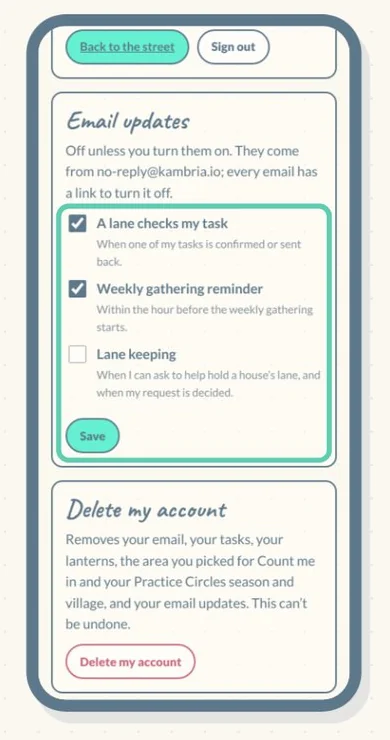
- Find Email updates. All three choices are off until you turn them on (see "The three emails" below).
- Tick the emails you want and tap Save. You see Saved ✓.
- The emails come from no-reply@kambria.io, for example "Your task was confirmed: …", "A lane sent your task back: …" (with the lane's note) or "The weekly gathering starts within the hour".
- To stop an email, tap Turn these emails off at the bottom of any email. No sign-in is needed.
- A page says Done. You won’t get “…” emails any more.
- To turn it on again, untick or tick the boxes in My account and tap Save.
The three emails
- A lane checks my task: when one of your tasks is confirmed or sent back.
- Weekly gathering reminder: within the hour before the weekly gathering starts.
- Lane keeping: when you can ask to help hold a house's lane, and when your request is decided.
Good to know
- Emails usually arrive within a few minutes.
- The email shows only your own news; nobody else's email is in it.
- Deleting your account removes all your email choices.
- Guests without an email don't see Email updates.
If something goes wrong
- Could not save. Please try again.
- This link is no longer valid. You can change your emails in My account after signing in.
- That didn’t work. Please try again in a moment.
- No email? Check your spam or promotions folder, and check the box is ticked in My account.