

Local Circles · Local · Admins
Record shared fund entries
Updated 20 Nov 2026
This guide helps admins add the money in and out of a challenge’s shared fund, so everyone can see the accounts.
Before you start
- Have the receipt online (a photo or file) with an https:// link.
- Only admins can add fund entries. A ring called "Shared fund" can collect receipts, but an admin types them in.
Steps
- On the admin page, tap Challenges and find the challenge.
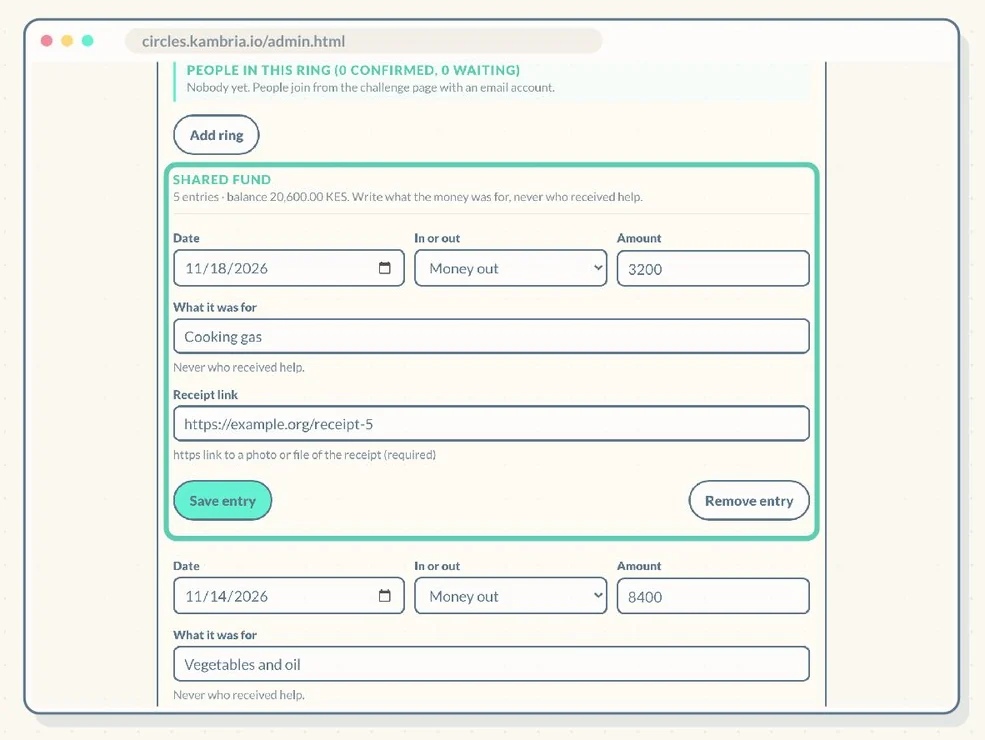
- Scroll to Shared fund. You see the number of entries and the balance, with commas between thousands (for example "3 entries · balance 20,600.00 KES").
- Tap Add entry. An empty entry form opens, dated today. Nothing shows on the website until you save it.
- Fill in:
- Date.
- In or out: Money in or Money out.
- Amount: a positive number with at most 2 decimals.
- What it was for, for example "Vegetables and oil". Never who received help.
- Receipt link: https link to a photo or file of the receipt (required).
- Tap Save entry. You see Saved ✓.
- Open the challenge page: Shared fund shows In, Out, Balance and the entry with its receipt link.
- To delete a saved entry, tap Remove entry and confirm. On a new form you haven’t saved yet, Remove entry just closes the form.
Good to know
- The website never takes payments. The fund only shows the accounts.
- The balance is always worked out from the entries.
- The currency is set on the challenge (Currency of the shared fund).
- Everyone can read the fund of a shown challenge, and it is printed on the results report.
- A new entry shows on the challenge page only after you tap Save entry.
If something goes wrong
- "Pick a date."
- "The amount must be a positive number with at most 2 decimals."
- "Add a short description." / "The description is too long (max 120 characters)."
- "Describe what the money was for, never who received help (no phone numbers, emails or links)."
- "Add a link to the receipt: real challenges need one for every entry."
- "The receipt link must start with https:// (no spaces)."