

Open Circles · Lanes (project leads)
Sign in to the Lane desk
Updated 20 Nov 2026
This guide helps lanes sign in to the Lane desk with their email, and sign out.
Before you start
- Your email must be on the lane list. An admin adds it.
Steps
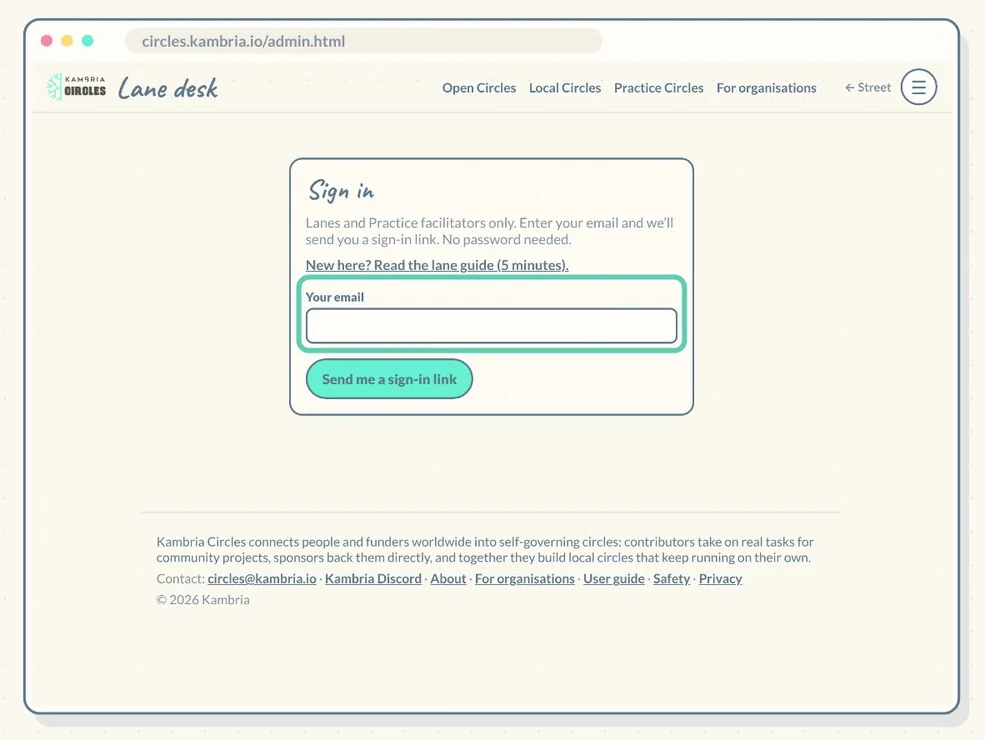
- Open circles.kambria.io/admin.html, or the ☰ menu → Lane desk.
- Under Sign in ("Lanes and Practice facilitators only…"), type your email in Your email.
- Tap Send me a sign-in link. Sometimes a quick "are you a person?" check appears first.
- The button shows Email sent and the page says "Check your inbox (…) and tap the link. You can close this tab."
- Open the email from Kambria Circles and tap the sign-in button. No password is needed.
- The Lane desk opens. At the top you see your email (admins also see an admin badge) and Sign out.
- Below are the sections: Waiting for review, Houses & tasks and Thanks. Admins see more sections.
- On a shared computer, tap Sign out when you finish.
Good to know
- New here? Tap New here? Read the lane guide (5 minutes). on the sign-in card.
- Each link works once and stops working after a while.
- While the beta lasts, a link Beta · Report a problem under your email opens the feedback form.
- The Lane desk works on a phone; you don't need to scroll sideways.
- Signing in or out of the Lane desk does not change your guest tasks on the street.
If something goes wrong
- This email isn’t on the list of lanes or facilitators. Ask an admin to add it. Check the spelling, or ask an admin.
- The list can’t be checked right now. Please try again later.
- A sign-in email was just sent. Please wait … seconds before asking for another one.
- Too many sign-in emails were sent. Please wait a few minutes and try again.
- We couldn’t send the email. Please try again later.
- Nothing after 2 minutes? Look in your spam or promotions folder.
- That sign-in link didn’t work (it may have expired). Please ask for a new one.
- Your lane details can’t be loaded right now. Please try again later. Reload the page.