

For organisations & sponsors
Local · How sponsors show on a challenge
Updated 20 Nov 2026
This guide helps sponsors understand what the site shows about them, and what it never shows.
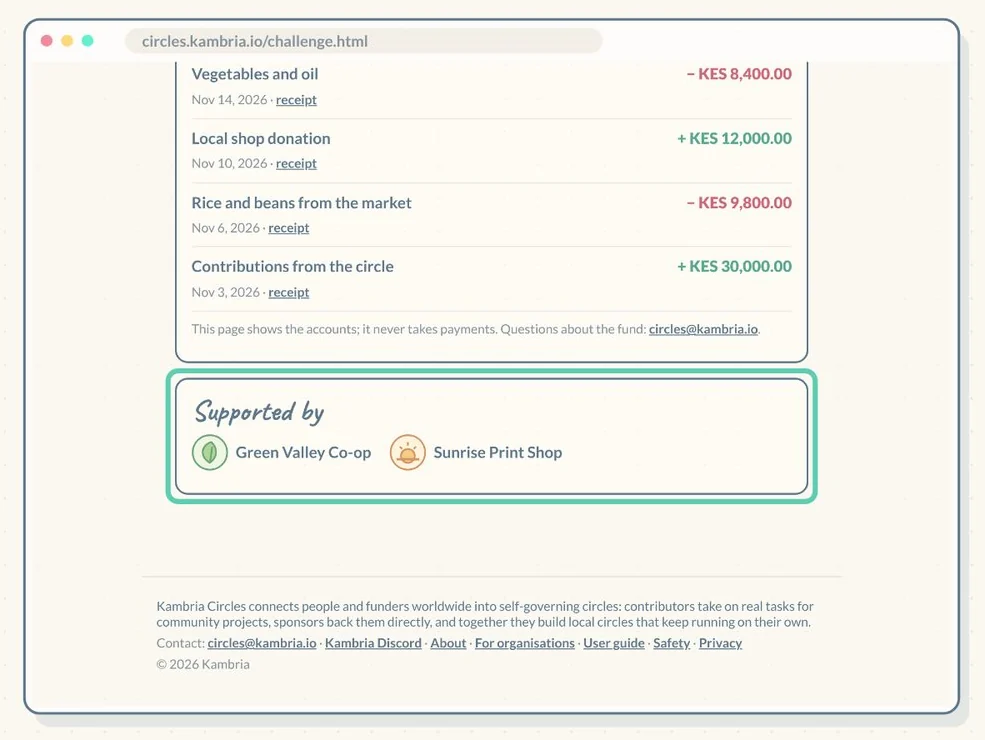
Steps
- Open the challenge page (circles.kambria.io/challenge.html?c=…).
- Scroll to Supported by, under the shared fund.
- You see your logo, small (40 pixels high), if you gave one, and your name.
- Tap your name or logo: your website opens in a new tab (if you gave one).
- Open Results report: you are listed under Supported by, with the note "Sponsors support the organisation doing the work directly. This report does not show amounts."
What is shown
- Your name.
- Your logo, loaded from the https link you gave.
- A link to your website.
What is never shown
- How much you gave, or any amount linked to you.
- Your contacts or your staff’s names.
Good to know
- Only admins can add, change or remove a sponsor. Send changes (new logo, new website) to circles@kambria.io.
- The order of sponsors is set by the admin.
- If your logo link stops working, only your name shows.
- The shared fund on the same page shows every amount spent, each with a receipt, so you can follow how the work is funded.
- The site never takes payments.
If something goes wrong
- You don’t see Supported by: you have not been added to this challenge yet. Write to the Circles team.
- Your logo is missing: the logo link does not work. Send a new https link to a PNG, JPG or SVG.