
Open Circles · Lanes (project leads)
Add your project's products
Updated 20 Nov 2026
This guide helps lanes show up to 3 real products of their project on the task board, each with a link to the project's own shop.
Before you start
- You need to be signed in to the Lane desk as the lane of the house.
- Have a link to the page where your project sells the product (it starts with https://).
Steps
On the Lane desk, open Houses & tasks and find your house.
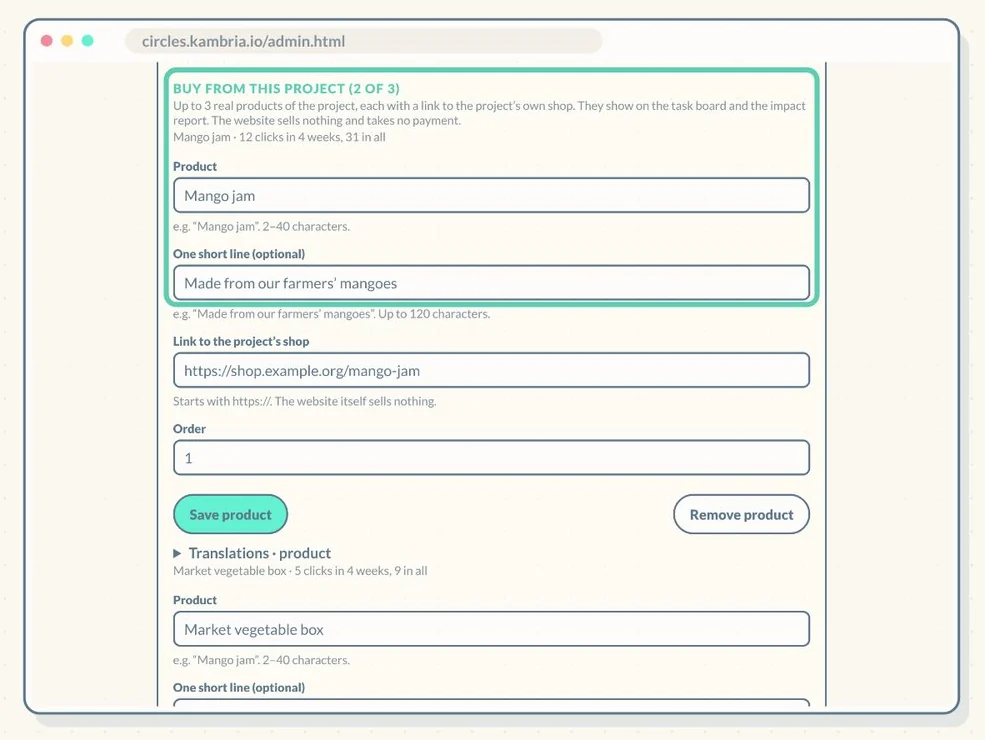
Under the impact report link, find Buy from this project. The heading shows how many products you have, for example Buy from this project (1 of 3).
Tap + Add a product.
Fill in Product (2 to 40 characters), for example "Mango jam".
Fill in One short line (optional) (up to 120 characters), for example "Made from our farmers’ mangoes".
Fill in Link to the project’s shop. It starts with https://.
Check Order (smaller numbers show first), then tap Add product. The product appears in the list.
To change a product, change its fields and tap Save product. You see Saved ✓.
To take a product away, tap Remove product, then confirm.
Above each product, read how often people opened it, for example Mango jam · 3 clicks in 4 weeks, 10 in all.
If the site has other languages, Translations shows under each product. Add the product name and line in each language there (see "Translate your house and tasks").
Good to know
- A house can list up to 3 products. When you have 3, + Add a product is gone.
- Products show on your task board and on your house's impact report, under Buy from this project, with the line "Sold by the project in its own shop. Kambria Circles takes no payment."
- The link must start with https://. Don't put links, emails or phone numbers in the name or the line.
- The website sells nothing and takes no payment. The link opens your project's own shop in a new tab.
- Only the Open Circles team (admins) can hide or show a product. A hidden product shows (hidden by the Open Circles team) next to its name and is not on the board.
- Clicks are counted once a day per browser. You see numbers only, never who clicked.
If something goes wrong
- Give the product a name (2–40 characters).
- The link must start with https:// (no spaces).
- No links, emails or phone numbers in the name or the line.
- “Order” must be a whole number from 1 to 99.
- A house can list up to 3 products. Remove one first.
- Check the fields: name 2–40 characters, line up to 120, link starting with https://, no phone numbers or emails.
- You can’t change this house’s products. You can only change the houses you look after.
- Only the Open Circles team hides or shows a product.
- Products aren’t ready yet. Please tell the Open Circles team.