

Local Circles · Local · Admins
Set up rings and choose a contact
Updated 20 Nov 2026
This guide helps admins add the rings of a challenge, confirm members and choose each ring’s contact.
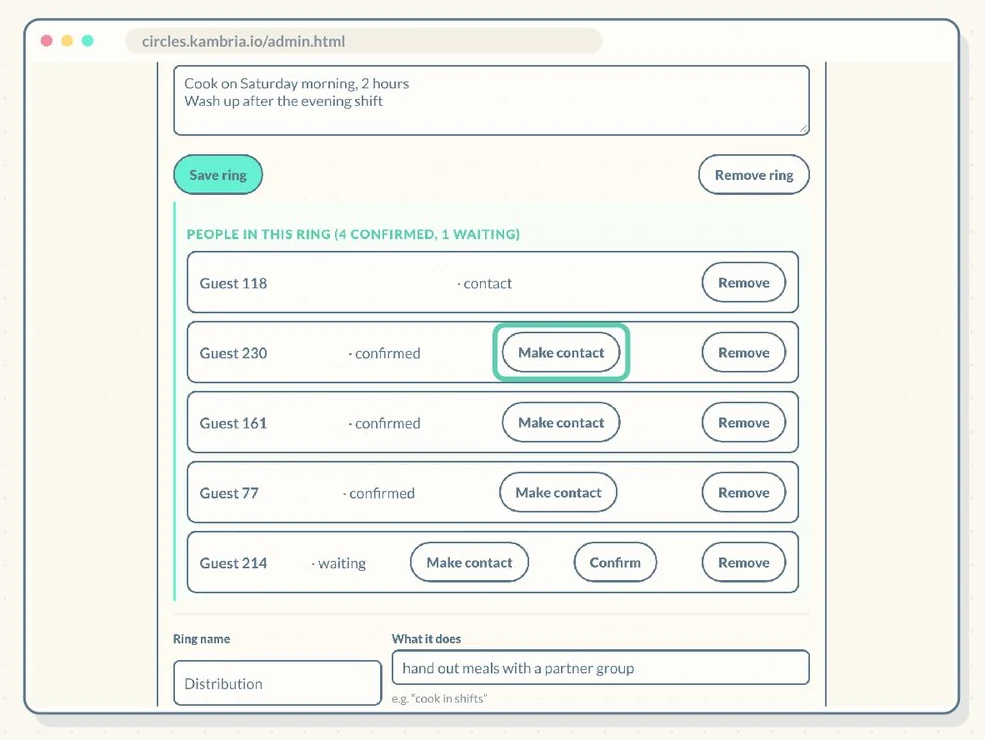
Steps to set up a ring
- On the admin page, tap Challenges and find the challenge.
- Under Rings (N), tap Add ring. An empty ring form opens. Nothing shows on the website until you save it.
- Fill in Ring name, What it does (for example "cook in shifts"), Icon, Colour, Order and Needs now (one per line). On the Example challenge you also fill in People and Contact.
- Tap Save ring. The ring is saved and shows on the challenge page.
- To delete a saved ring, tap Remove ring and confirm. On a new form you haven’t saved yet, Remove ring just closes the form.
Steps to choose a contact (real challenges)
- Under each ring you see People in this ring (N confirmed, N waiting) with each person’s guest number and "waiting", "confirmed" or "contact".
- If the ring has no contact, you see "No contact yet: choose one below."
- Tap Make contact next to the right person and confirm. The person is confirmed and becomes the contact. The old contact (if any) becomes a normal member.
- Tap Confirm to accept someone who is waiting, or Remove to take someone out of the ring.
Good to know
- On a real challenge there are no People and Contact boxes: each ring’s number of people and its contact follow the people who joined (below each ring).
- On the Example challenge, People (0 = "needs someone") and Contact are typed by hand.
- Contact must be a guest number or a role (for example "Guest 118", "Kitchen lead"), never a name, phone or email.
- The contact confirms newcomers and adds progress on the challenge page.
- To take the contact out of the ring, tap Remove on their line and confirm ("Remove Guest … from this ring? The ring will have no contact until you choose a new one."). Then choose a new contact with Make contact.
- Ring members show only as guest numbers. You never see emails.
If something goes wrong
- "Give the ring a name."
- "“People” must be a whole number from 0 to 99."
- "Use a guest number or a role (e.g. “Guest 118”, “Kitchen lead”), never personal contact details."
- "“Needs now” is too long (max 400 characters)."
- "Nobody yet. People join from the challenge page with an email account."