

Open Circles · Guests & contributors
My journey and the lane invitation
Updated 20 Nov 2026
This guide helps contributors see their step on the Kambria Circles ladder and accept an invitation to help keep a house's lane.
Steps
- Open the ☰ menu → My journey. You can also tap See my journey → in My tasks or See my journey in My account.
- At the top you see your guest number and your step, for example Guest 214 · Contributor.
- Under Where you are, read the six steps: Visitor, Helper, Contributor, Neighbour, Lane keeper, DAO applicant.
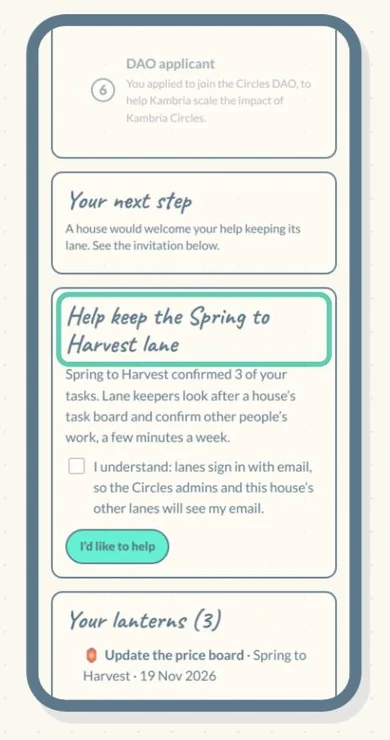
- Read Your next step and tap its button, for example Take your first task, Open the street or Keep my lanterns with an email.
- Under Your lanterns (…) see every lantern you earned, and under In progress your open tasks.
- When a house has confirmed enough of your tasks (3 by default), a card Help keep the … lane appears.
- If you have no email yet, tap Keep my lanterns with an email first: lanes sign in to the lane desk with their email.
- Tick I understand: lanes sign in with email, so the Circles admins and this house’s other lanes will see my email. Then tap I’d like to help.
- You see Request sent on …. You can tap Withdraw my request at any time.
- When the admins approve, a card Your lanes appears with Open the lane desk.
Good to know
- Neighbour means lanterns in 3 different weeks (the admins can change this number).
- A Lane keeper looks after one house's task board and confirms other people's work, a few minutes a week.
- Only you see your journey. Without an email it shows your journey on this device only.
- In the admins' list your request shows only your guest number, not your email.
If something goes wrong
- Please tick the box first. Tick the box, then tap I’d like to help again.
- Not this time: “…” You can ask again later. The admins declined, with their reply.
- You seem to be offline. Please try again when you’re back online. / Something went wrong. Please try again.