

Local Circles · Local · Admins
Manage Local areas
Updated 20 Nov 2026
This guide helps admins manage the list of areas people pick in Count me in on the Local Circles page.
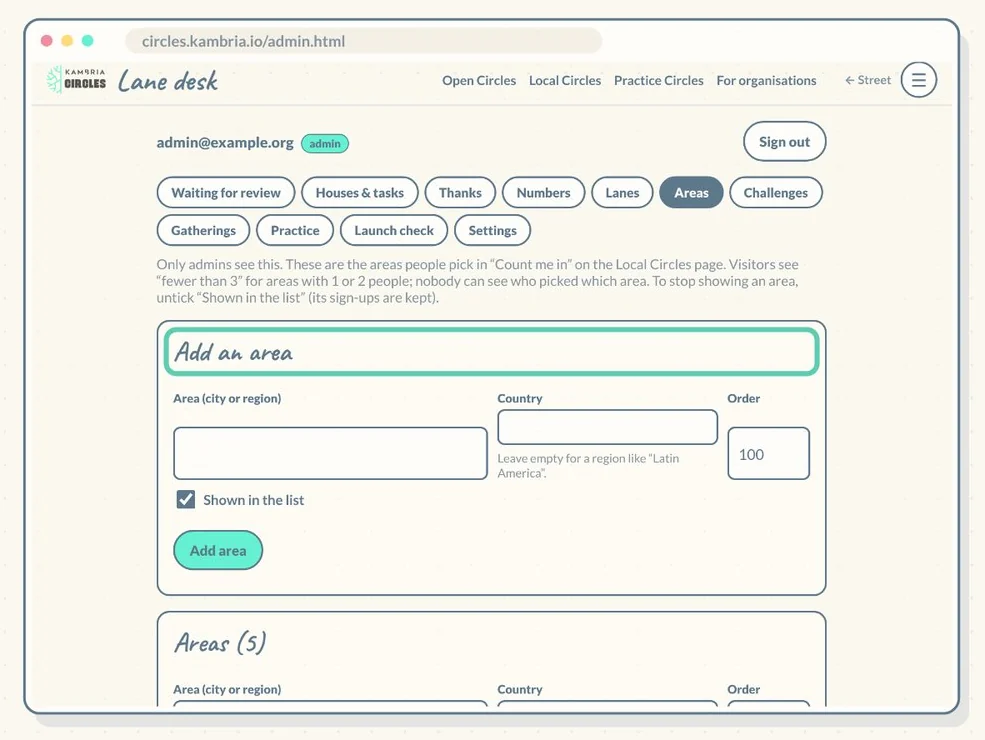
Before you start
- You are signed in on the admin page with an admin email.
Steps
- On circles.kambria.io/admin.html, tap the Areas tab.
- To add an area, fill in Add an area:
- Area (city or region), for example "Nairobi".
- Country, for example "Kenya". Leave it empty for a region like "Latin America".
- Order: a whole number; smaller comes first.
- Keep Shown in the list ticked.
- Tap Add area. You see Added ✓.
- To rename or reorder an area, change its boxes in the list Areas (N) and tap Save.
- To stop showing an area, untick Shown in the list and tap Save. People who already picked it stay counted.
- Under each area you see "N people counted in".
Good to know
- Areas are a city or a region only. Never add streets, villages small enough to identify people, or addresses.
- There is no delete. Hiding keeps people’s sign-ups.
- You see exact totals per area, but never who picked which area. Visitors see fewer than 3 for areas with 1 or 2 people.
- Areas also appear in Gatherings (each gathering belongs to an area).
- Translate area names under Translations (see "Translate Local content").
- Only admins see the Areas tab.
If something goes wrong
- "Give the area a name."
- "The name is too long (max 60 characters)." / "The country is too long (max 40 characters)."
- "Order must be a whole number (smaller comes first)."
- "An area with this name and country already exists."
- "Couldn’t save. Please try again."