

Open Circles · Admins
Set up task-matched sponsorship for a house
Updated 21 Nov 2026
This guide helps admins add a sponsor that matches a house's confirmed tasks, book the next sponsor, share the sponsor's report link and do the weekly check.
Before you start
- A company has agreed with Kambria to match the confirmed tasks of one house, up to a number of tasks. The agreement, Kambria's management fee and the invoices are handled outside the website.
- You know the sponsor's name, the number of tasks, the first day and, if agreed, the last day. If they want, you also have a link to their logo (a small picture) and their website. Both links start with https://.
- You are signed in on the Lane desk as an admin. Lanes don't see this part.
Steps
- On the Lane desk, tap Houses & tasks and scroll to the house. Under Buy from this project you see Task-matched sponsorship.
- Tap + Add a task-matched sponsor. Fill in Sponsor name (2–60 characters, as the sponsor wants it shown), Logo link (optional), Website (optional) and Number of tasks (1–10,000).
- Choose From (the first day) and, if agreed, To (optional). Leave To empty to run until the tasks are done or you press End now. Tap Add sponsor.
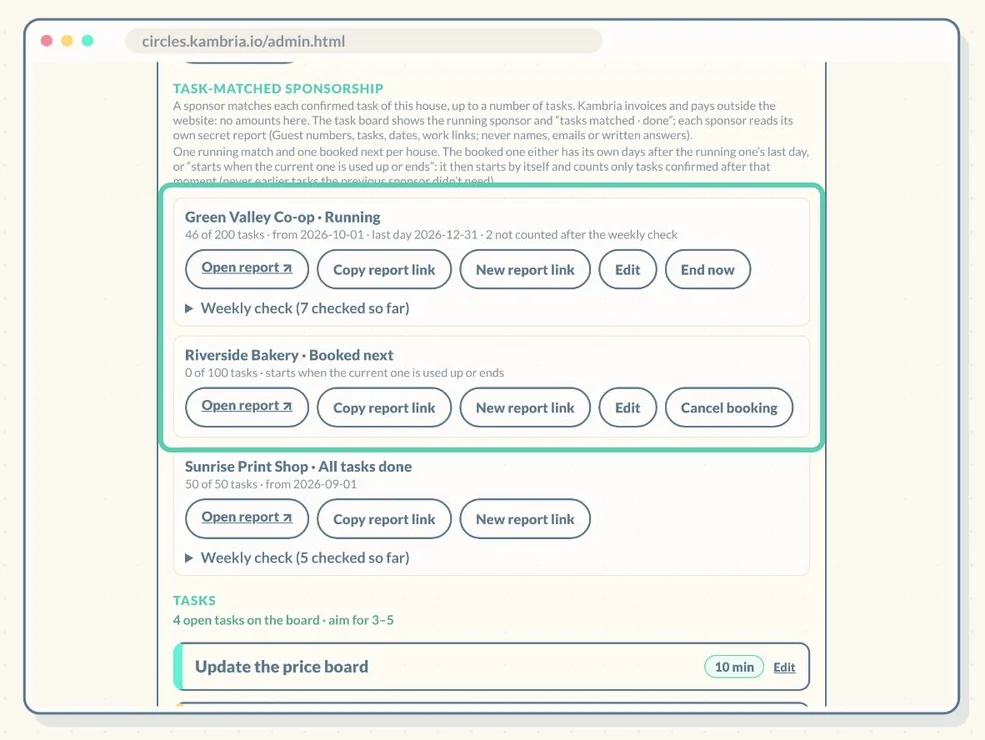
- The match shows its sponsor and status, for example "Green Valley Co-op · Running", and a line such as "46 of 200 tasks · from 2026-10-01 · last day 2026-12-31". From then on, each task the house's lane confirms between these days counts, in the order the tasks are confirmed, up to the number of tasks.
- Tap Copy report link (it shows Copied ✓) and send the link to the sponsor by email, outside the website. Open report ↗ shows the report as the sponsor sees it.
- To change a match, tap Edit, change the fields and tap Save changes. You can change the name, logo, website, number of tasks and To. From changes only while the match is booked and has not started.
- To book the next sponsor, tap + Book the next sponsor under the running match. Starts when the current one is used up or ends is ticked: the new match starts by itself when the running one has all its tasks, when you press End now, or after its last day. Or untick it and choose a From after the running match's last day. Tap Book sponsor. The new match shows "Booked next".
- To stop a running match early, tap End now and confirm. Tasks confirmed from then on no longer count, and a match booked to start after it starts now. To drop a booking, tap Cancel booking and confirm: the booked match will not start.
- If a report link was shared by mistake, tap New report link and confirm. The old link stops working: send the new one to the sponsor.
Do the weekly check
- Once a week, tap Weekly check (… checked so far) under the running match. It shows once the match has counted tasks.
- Tap Pick 5 at random. You see up to 5 tasks counted in the last 7 days that nobody has checked yet: the task, the Guest number, the day it was confirmed, and Open the work ↗ or the written answer.
- Open each one. If it meets the task's "Done when", tap Looks right. If not, write why in Why it doesn’t count (needed for “Don’t count”) and tap Don’t count.
- A task marked Don’t count leaves the match, and the next confirmed task takes its place. The match line and the sponsor's report say how many tasks were not counted after the weekly check.
Good to know
- The website never stores or shows amounts. Kambria invoices the sponsor and pays outside the website. The money goes to the project; the guests who do the tasks are not paid.
- A house has at most one running match and one booked next. When both exist, there is no add button.
- A task counts for one sponsor only. A match that starts when the current one is used up or ends counts only tasks confirmed after that moment, never earlier tasks the previous sponsor didn't need.
- Days are counted in UTC. A match whose From is still to come shows "Booked next" until that day.
- The task board shows only the running match: the sponsor's logo and name in "Each confirmed task here is matched by …" and a bar with, for example, "200 tasks matched · 46 done". The house's impact report shows "Tasks matched by …" with the counts per month.
- Each match has its own report link. A booked match's report shows 0 of its tasks. The report lists days, tasks, Guest numbers and work links, never names, emails or written answers.
- When all its tasks are done, a match shows "All tasks done" and the box leaves the task board, unless a booked match takes over. You can then add a new match. Ended matches keep their report.
- Only admins see the weekly check notes.
If something goes wrong
- "Give the sponsor’s name (2–60 characters)."
- "No links, emails or phone numbers in the sponsor’s name."
- "Links must start with https:// (no spaces)."
- "“Number of tasks” must be a whole number from 1 to 10,000."
- "“To” can’t be before “From”."
- "The days overlap the other match. Start after its last day, or tick “Starts when the current one is used up or ends”."
- "This house already has a running match and one booked next. End or cancel one first."
- "The number of tasks can’t be lower than the … already counted." Choose a number at least as big as the tasks already counted.
- "The last day can’t be before the day of the last counted task."
- "This match has started: its first day can’t change any more."
- "The next sponsor has taken over: this match can’t reopen."
- "Say in a few words why this task does not count." Write a note before you tap Don’t count (up to 200 characters).
- "Nothing to check: no unchecked tasks were counted in the last 7 days."
- "Only admins can change this." Sign in with your admin email.