

This page shows lanes how to use the Lane desk. It takes about 5 minutes to read.
1. What a lane does
- You look after the small tasks of one house (one project) on the Open Circles street.
- A guest takes a task, does it, and sends you a link or a short note.
- You check the work against Done when. If it is done, you confirm it and the guest’s lantern goes up on the thank-you tree. If something is missing, you send it back with a short, kind note.
- Please review new work within 3 days. Guests are waiting to see their lantern.
- Keep 3 to 5 open tasks on your board. Each task takes 5 to 30 minutes.
2. Sign in
- Open the Lane desk.
- Type your email and tap Send me a sign-in link. Sometimes a quick “are you a person?” check appears first.
- Open the email and tap the link. You are in. There is no password.
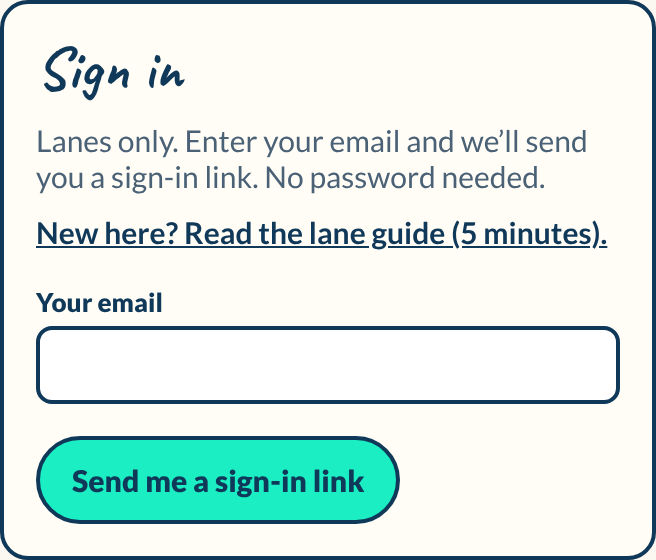
- Your email must be on the lane list. If you see “This email isn’t on the lane list”, ask the admin to add it.
- Each link works once and stops working after a while. If it doesn’t work, ask for a new one.
- On a shared computer, tap Sign out when you finish.
3. Review work
- Open Waiting for review. Each card shows the task, the guest number (for example Guest 214), Done when, and what the guest sent.
- Open the link they sent. Ask one question: does this meet “Done when”?
- Yes: tap Confirm. The guest’s lantern goes up on the tree. The work doesn’t need to be perfect.
- Not yet: write a note in Note to the guest, then tap Return. The note is required. Say what is missing and how to fix it.
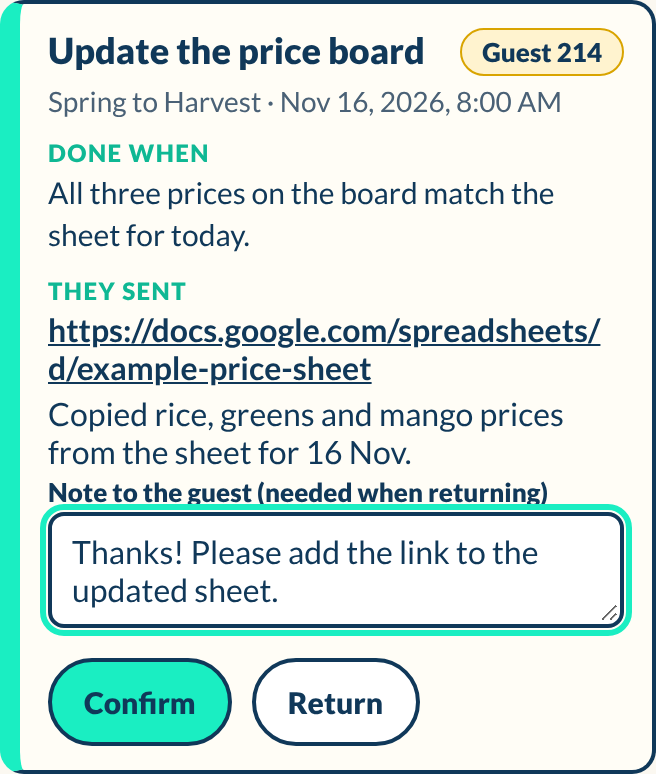
- Good note: “Thanks! Please add the link to the updated sheet.” Not so good: “Wrong.”
- If the work shows personal details (phone numbers, addresses, photos of people), return it and ask the guest to remove them.
- Tap Reload to see new work.
4. Add and edit tasks
- Open Houses & tasks. You see your house and its tasks.
- To change a task, tap Edit next to it (or its title), change the fields, then tap Save task.
- To add a task, tap + Add a task, fill in the fields, then tap Add task.
- New tasks start as drafts (Open is off). The Open Circles team reads each one against the rules below and switches it on. Only the team can switch a task on; you can switch your own task off at any time.
- Under Tasks you see how many tasks are open on the board. Aim for 3 to 5.
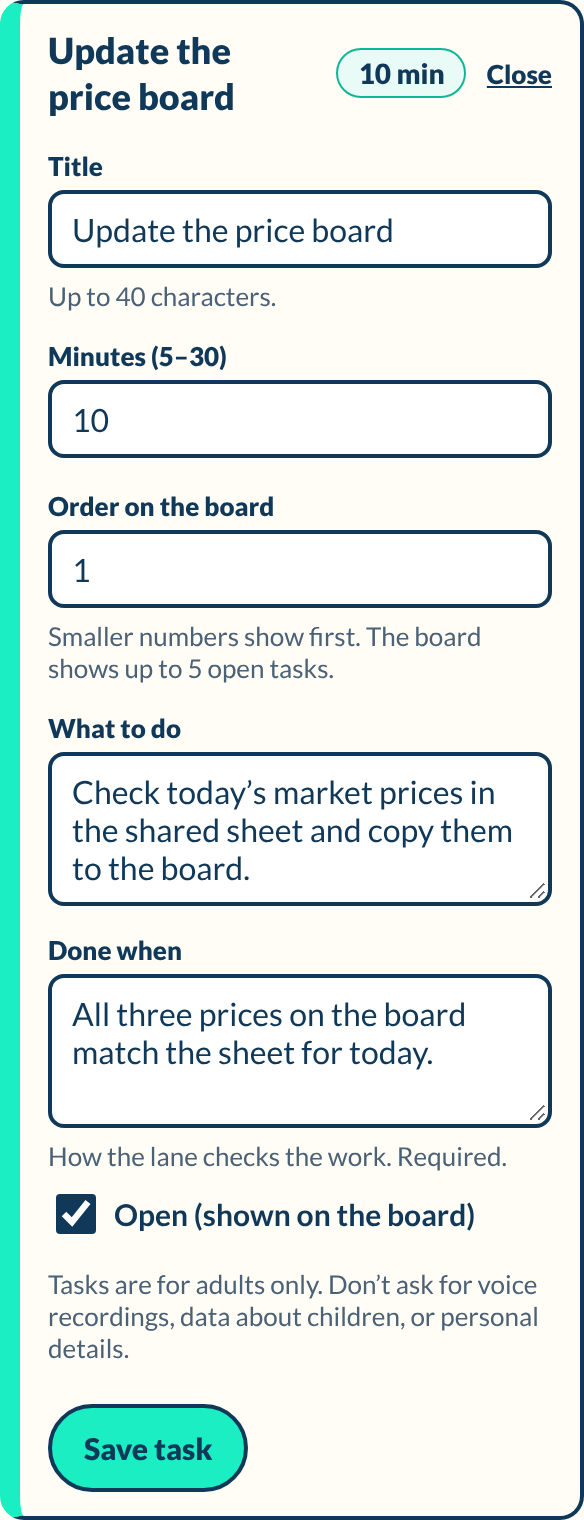
- Title
- Short and clear, up to 40 characters.
- Minutes (5–30)
- How long it takes someone new.
- Order on the board
- Smaller numbers show first. The board shows up to 5 open tasks.
- What to do
- The steps, with links to the sheet or document they need.
- Done when
- How you will check the work. Required. See the next part.
- Open (shown on the board)
- Untick it and save to take a task off the board. Don’t delete tasks: guests who already took one still need it.
You can also change the house name and short description, then tap Save house. Changes show on the street after the page is reloaded.
Under Buy from this project you can list up to 3 real products of your project: tap + Add a product, write its name, one short line and a link to your own shop (https://), then tap Add product. They show on your task board and impact report. The website sells nothing: the link opens your shop.
5. Write a good “Done when”
“Done when” tells the guest when they have finished, and tells you how to check. A good one can be checked in 1 to 2 minutes.
Name a result you can see
Good All three prices on the board match the sheet for today.
Not yet Help with prices.
Say what they send you
Good Share a link to the sheet with the new rows.
Not yet Let us know when you’re done.
Keep it small and countable
Good Every row on one purchase-book page is in the sheet; numbers double-checked.
Not yet Digitise the purchase books.
Never ask for personal details
Good Two salon names and their towns are added to the map.
Not yet Send the salon owners’ phone numbers.
Make it possible for someone new
Good Answers to 3 study questions are in the shared document, each with a source link.
Not yet Help students prepare for the exam.
6. Safety and help
- Tasks are between adults only. Don’t post tasks for children or tasks that need data about children.
- Don’t ask for voice recordings or personal details (phone numbers, addresses, ID, photos of people).
- Never ask a guest to meet in person or to move to a private chat.
- If something feels wrong (spam, rude or unsafe content), return the work without repeating it, and tell the admin.
Questions or problems? Message the admin on the Kambria Discord, or email circles@kambria.io.